Handle a case from start to finish
This is the core Dossiq journey: find a case, open it, work it, and advance it through its statuses. Everything a case-handler does day-to-day starts here.
Goal
By the end you will have opened the Cases list, filtered it by case type, opened a case detail page and read its widgets, and moved a case from one status to the next on the Workflow board.
Prerequisites
- Completed Open Dossiq for the first time.
- At least one case exists. The demo ships example cases across four case types — Building Permit, Grant Application, Citizen Complaint and Freedom of Information Request — each with its own status lifecycle (Received → In progress → … → Completed).
Steps
-
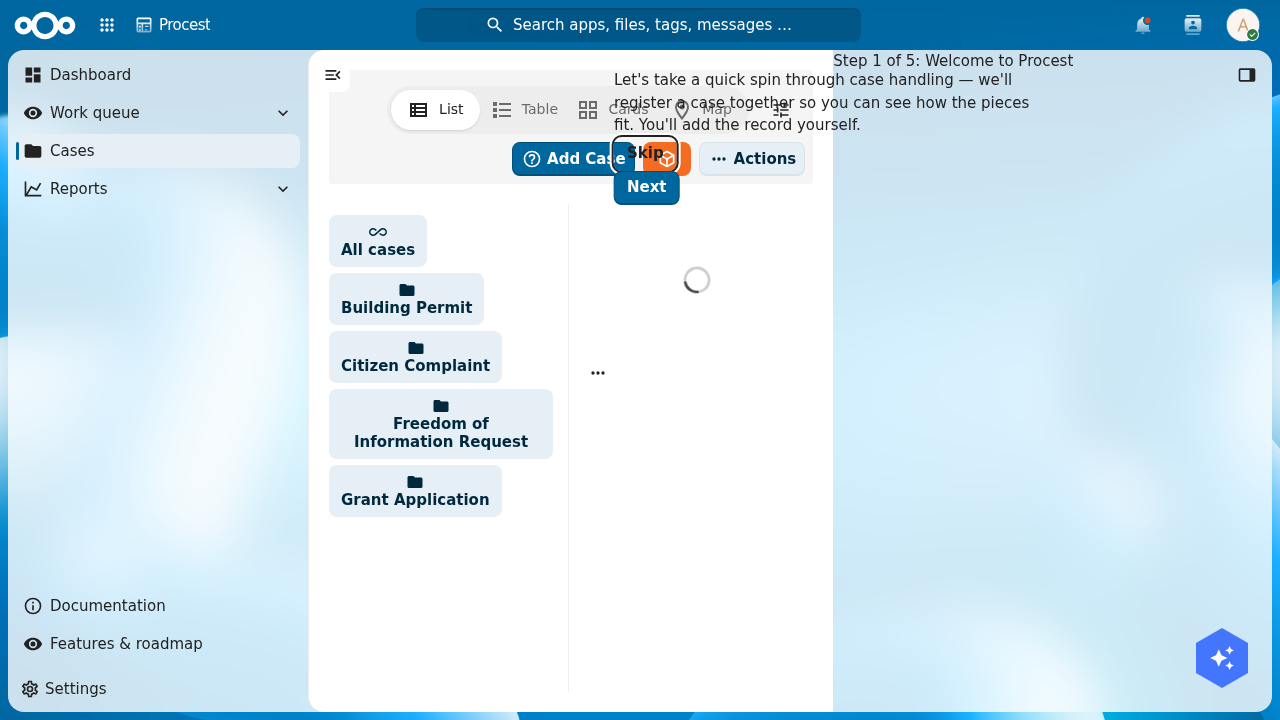
In the left navigation, click Cases. The list opens in List view. Use the view switcher (top right) to flip between List, Table, Cards and Map; use the search box and the filter sidebar to narrow the list by status, case type or priority.
-
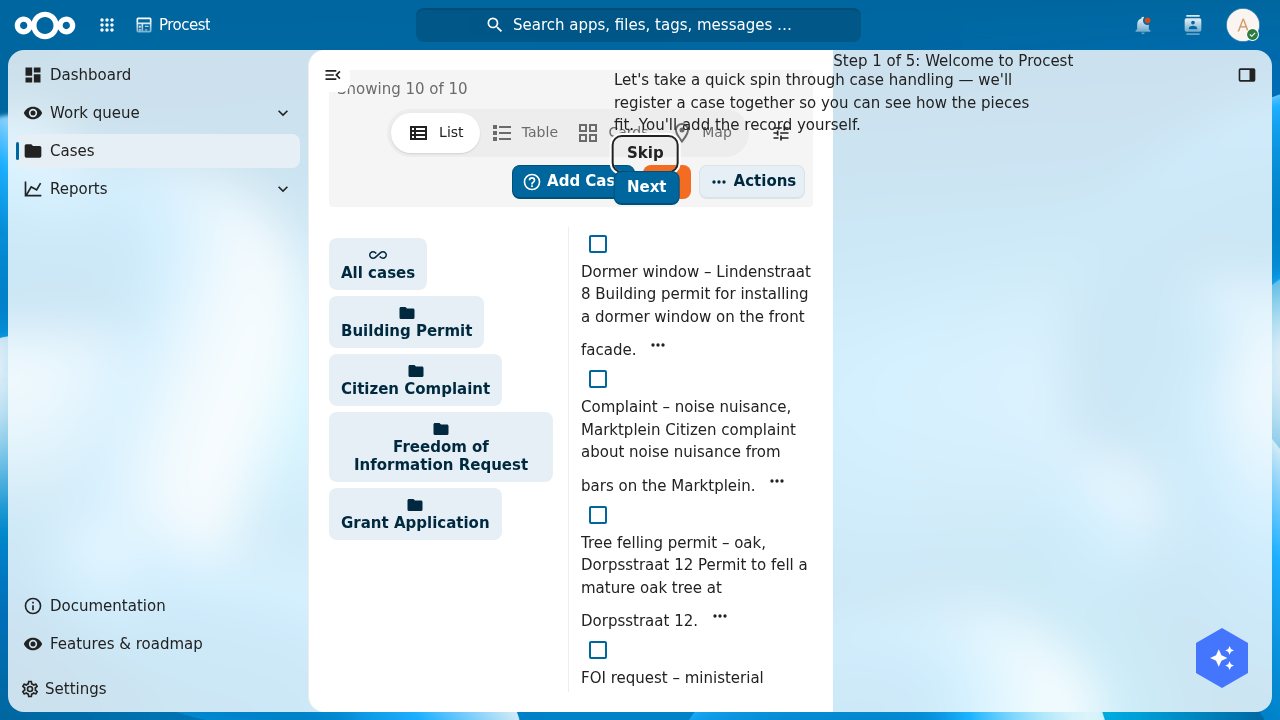
On the left of the list sits the case-type folder sidebar. Click a folder — for example Building Permit — to show only cases of that type. Click All cases to clear the filter.
-
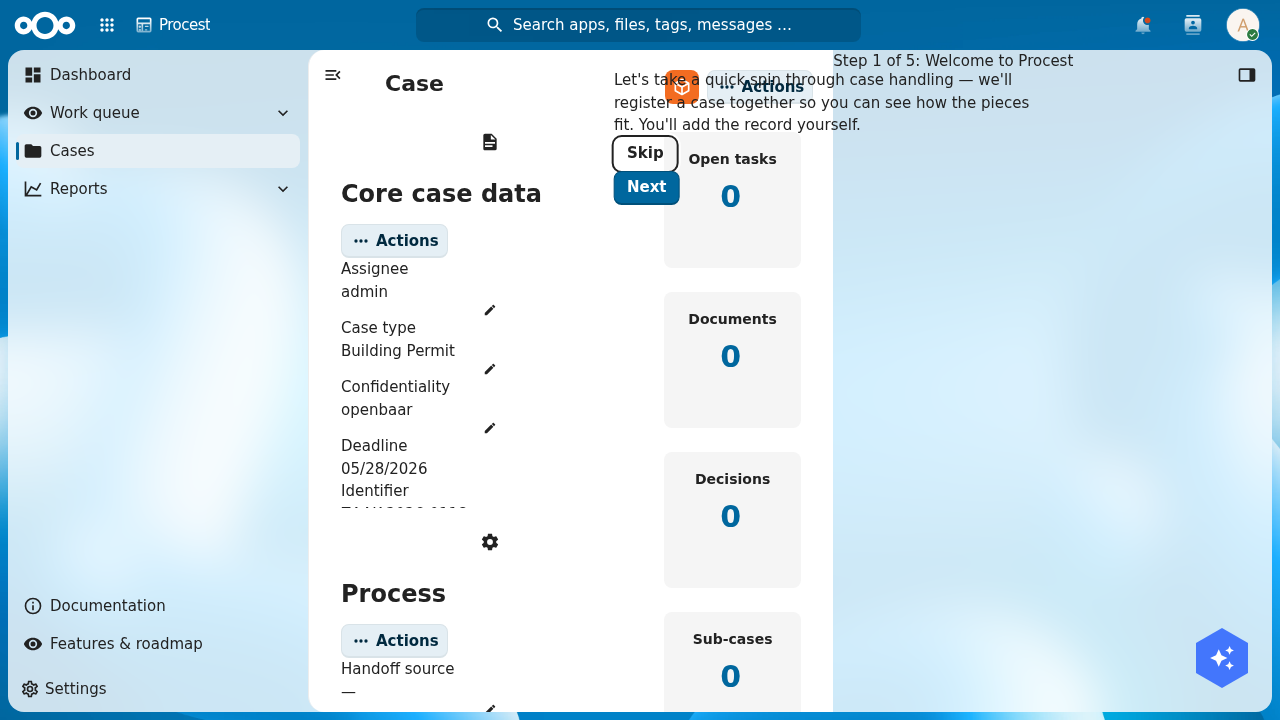
Click a case to open its detail page. The page is a grid of widgets: Core case data (title, identifier, case type, assignee, deadline), Process (status, procedure, workflow), KPI tiles (open tasks, documents, decisions, sub-cases), and a Related panel. Below sit the case's collections — Tasks, Documents, Decisions and more — each fitting its own cell.
-
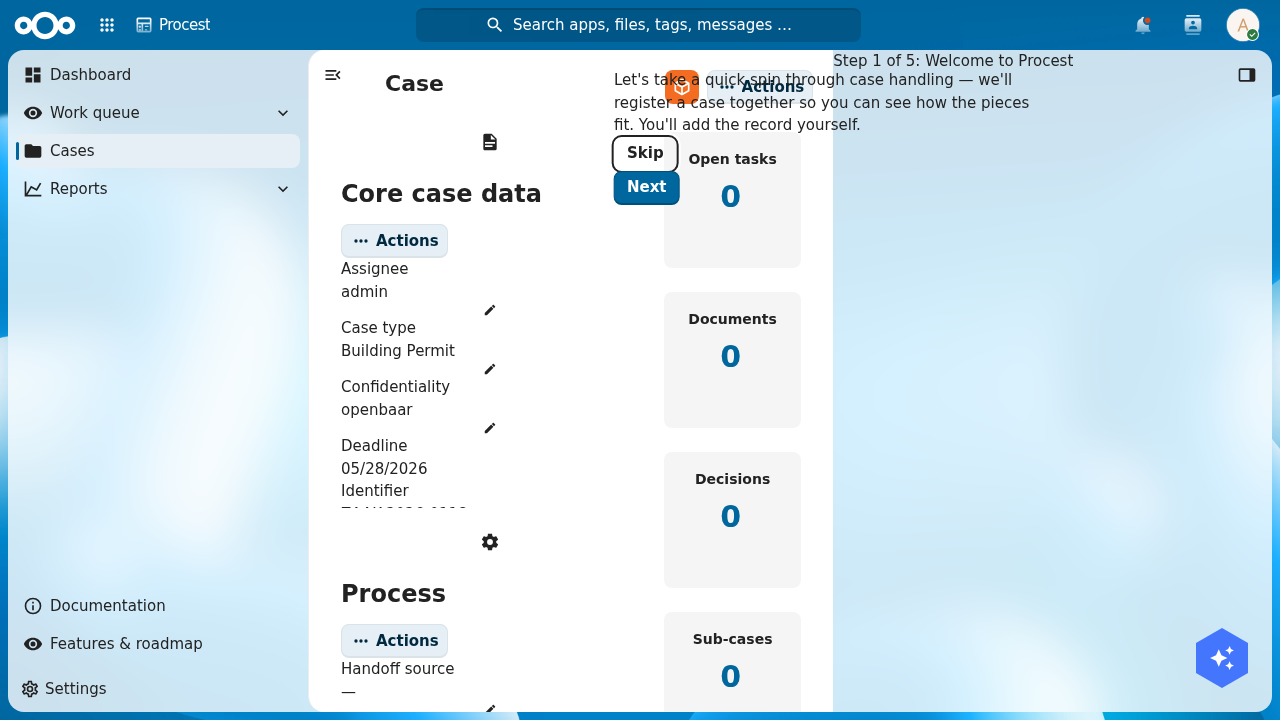
Open the sidebar's History tab to see the full audit trail of every read, create and update on this case, newest first.
-
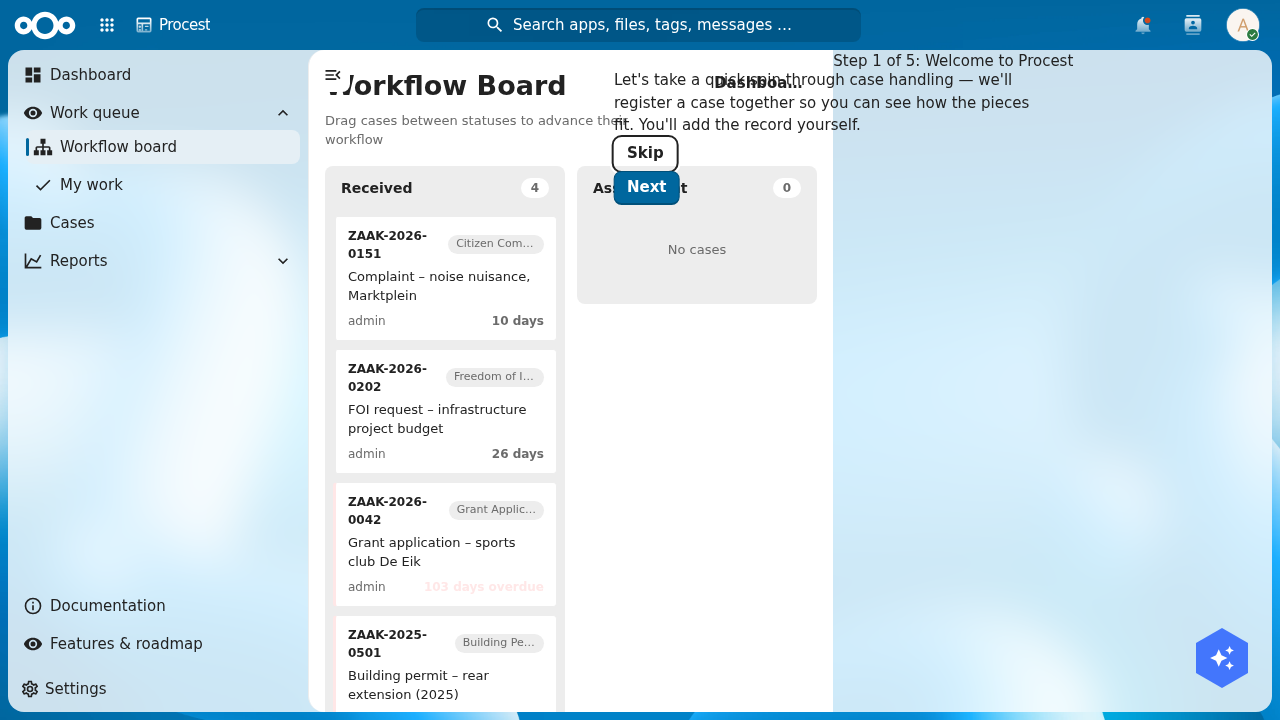
To advance the case, go to Work queue → Workflow board. Each column is a non-final status (for example Received, In progress, Assessment, Decision). Because status names are shared across case types, the board shows one clean column per status name, not one per case type.
-
Drag a case card from its current column to the next status column. The move is saved immediately (it is permission-checked on the server). If the target status is not part of that case's own workflow, the card returns and a short message explains why.
Verification
- The case now shows its new status on the Cases list and on its detail page's Process widget.
- The History tab records the status change with your user and a timestamp.
- The dashboard's Cases by Status chart reflects the new distribution.
Next
- See your cases on the map — plot location-based cases as points and areas.
- Record a decision on a case.
- Track deadlines across your workload.