See your cases on the map
Cases that carry a location can be plotted geographically. The Map view turns the Cases list into an interactive map — handy for permits, inspections and anything tied to an address or a parcel.
Goal
By the end you will have switched the Cases list to Map view, seen cases plotted as both points and areas on an OpenStreetMap basemap, and opened a case from its marker.
Prerequisites
- Completed Handle a case from start to finish.
- At least one case with geometry. A case stores its location in a
geometryfield as GeoJSON. The demo cases ship with geometry: most are single Points, and a couple of Building Permit parcels are drawn as Polygons (areas).
Steps
-
Open Cases and click Map in the view switcher (top right).
-
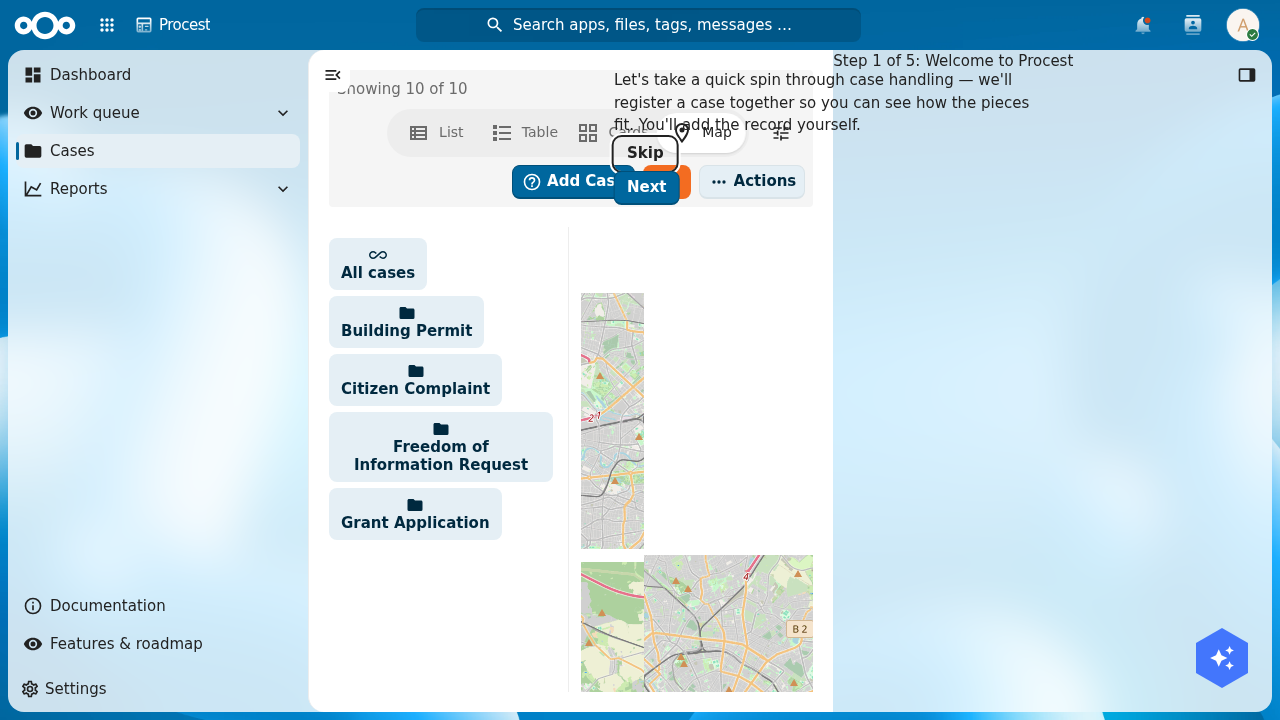
The map loads an OpenStreetMap basemap and fits itself to the cases that have a location. Each located case appears as a marker; cases whose geometry is a polygon appear as a shaded area rather than a single point.
-
Click a marker or area to see a popup with the case title, then follow it through to the case's detail page — the same navigation as clicking a row in the list.
-
Pan and zoom the map. The filter sidebar and folder sidebar still apply, so filtering by case type or status also narrows what is plotted.
How a case gets a location
A case is plotted whenever its geometry field holds a valid GeoJSON geometry:
- Point —
{"type":"Point","coordinates":[lng, lat]}renders as a marker. - Polygon —
{"type":"Polygon","coordinates":[[[lng, lat], …]]}renders as a shaded area (for example a building-permit parcel).
Coordinates are [longitude, latitude] (GeoJSON order). A case with no geometry simply does not appear on the map.
Verification
- The map shows a basemap with your located cases as markers, and any polygon cases as shaded areas.
- Clicking a marker opens the matching case.
- Cases without geometry are absent from the map but still present in the List/Table/Cards views.
Next
- Record a decision on a case.
- Track deadlines across your workload.